A Chart is a tool you can use to communicate data graphically. Including a chart in your document can allow your reader to see the meaning behind the numbers, and it can make showing comparisons and trends easier.
Word has several types of charts, each with its own advantages and allowing you to choose the one that best fits your data. In order to use charts effectively, you’ll need to understand how different charts are used.
The several types of charts are the Column, Line, Pie, Bar, Area, and Surface.
How to make:
Word uses a spreadsheet as a placeholder for entering chart data, much like Excel. The process of entering data is fairly simple but first you need to know how to make the chart itself.
First is to Select the Insert tab, then click the Chart command in the Illustrations group, then a dialog box will appear. Select a category from the left pane, and review the charts that appear in the right pane.
After that, Select the desired chart, then click OK.
Then a chart and a spreadsheet will appear. The data that appears in the spreadsheet is placeholder source data that you will replace with your own information. The source data is used to create the Word chart.
After that enter your data into the worksheet. If necessary, click and drag the lower-right corner of the blue line to increase or decrease the data range for rows and columns. Only the data enclosed by the blue lines will appear in the chart.
And lastly, When you’re done, click the X to close the spreadsheet and the chart is completed.
Pie Chart
Column Bar
Column Bar
Column charts use vertical bars to represent data. They can work with many different types of data, but they are most frequently used for comparing information.
Line Charts
Line Chart
Line charts are ideal for showing trends. The data points are connected with lines, making it easy to see whether values are increasing or decreasing overtime.
Pie Chart
Pie Chart
Pie charts make it easy to compare proportions. Each value is shown as a slice of the pie, so it’s easy to see which values make up the percentage of a whole.
Bar Chart
Bar Chart
Bar charts work just like column charts, but they use horizontal bars instead of vertical bars.
Area Charts
Area Chart
Area charts are similar to line charts, except in areas under the lines are filled in.
Surface Charts
Surface Chart
allow you to display data across a 3D landscape. They work best with large data sets, allowing you to see a variety of information at the same time.
has seen nine major versions since its first release in 1985. Over 29 years later, Windows looks very different but somehow familiar with elements that have survived the test of time, increases in computing power and most recently, a shift from the keyboard and mouse to the touch screen.
Windows 1.0
windows 1.0
is where it all started for Windows. The original Windows 1 was released in November 1985 and was Microsoft’s first true attempt at a graphical user interface in 16-bit.
Development was spearheaded by Microsoft founder Bill Gates and ran on top of MS-DOS, which relied on command-line input.
It was notable because it relied heavily on use of a mouse before the mouse was a common computer input device. To help users become familiar with this odd input system, Microsoft included a game, Reversi (visible in the screenshot) that relied on mouse control, not the keyboard, to get people used to moving the mouse around and clicking on screen elements.
Windows 2.0
windows 2.0
Two years after the release of Windows 1, Microsoft’s Windows 2 replaced it in December 1987. The big innovation for Windows 2 was that windows could overlap each other, and it also introduced the ability to minimize or maximize windows instead of “iconising” or “zooming”.
The control panel, where various system settings and configuration options were collected together in one place, was introduced in Windows 2 and survives to this day.
Microsoft Word and Excel also made their first appearances running on Windows 2.
Windows 3.0
windows 3.0
The first Windows that required a hard drive launched in 1990. Windows 3 was the first version to see more widespread success and be considered a challenger to Apple’s Macintosh and the Commodore Amiga graphical user interfaces, coming pre-installed on computers from PC-compatible manufacturers including Zenith Data Systems.
Windows 3 introduced the ability to run MS-DOS programmes in windows, which brought multitasking to legacy programmes, and supported 256 colors bringing a more modern, colorful look to the interface.
More importantly, at least to the sum total of human time wasted, it introduced the card-moving time sink and mouse trainer Solitaire.
Windows 3.1
windows 3.1
Windows 1 and 2 both had point release updates, but Windows 3.1 released in 1992 is notable because it introduced TrueType fonts making Windows a viable publishing platform for the first time. Minesweeper also made its first appearance. Windows 3.1 required 1MB of RAM to run and allowed supported MS-DOS programs to be controlled with a mouse for the first time. Windows 3.1 was also the first Windows to be distributed on a CD-ROM, although once installed on a hard drive it only took up 10 to 15MB which is a CD that can typically store up to 700MB.
Windows 95
windows 95
As the name implies, Windows 95 arrived in August 1995 and with it brought the first ever Start button and Start menu (launched with a gigantic advertising campaign that used the Rolling Stones’ Start Me Up, and a couple of months later Friends stars Jennifer Aniston and Matthew Perry. Could it be any more up-to-date?)
It also introduced the concept of “plug and play” – connect a peripheral and the operating system finds the appropriate drivers for it and makes it work. That was the idea; it didn’t always work in practice.
Windows 95 also introduced a 32-bit environment, the task bar and focused on multitasking. MS-DOS still played an important role for Windows 95, which required it to run some programmes and elements.
Internet Explorer also made its debut on Windows 95, but was not installed by default requiring the Windows 95 Plus! pack. Later revisions of Windows 95 included IE by default, as Netscape Navigator and NCSA Mosaic were popular at the time.
Windows 98
windows 98
Released in June 1998, Windows 98 built on Windows 95 and brought with it IE 4, Outlook Express, Windows Address Book, Microsoft Chat and NetShow Player, which was replaced by Windows Media Player 6.2 in Windows 98 Second Edition in 1999.
Windows 98 introduced the back and forward navigation buttons and the address bar in Windows Explorer, among other things. One of the biggest changes was the introduction of the Windows Driver Model for computer components and accessories, one driver to support all future versions of Windows.
USB support was much improved in Windows 98 and led to its widespread adoption, including USB hubs and USB mice.
Windows Millennium Edition
windows ME
Considered a low point in the Windows series by many at least, until they saw Windows Vista. Windows Millennium Edition was the last Windows to be based on MS-DOS, and the last in the Windows 9x line.
Released in September 2000, it was the consumer-aimed operating system twinned with Windows 2000 aimed at the enterprise market. It introduced some important concepts to consumers, including more automated system recovery tools.
IE 5.5, Windows Media Player 7 and Windows Movie Maker all made their appearance for the first time. Autocomplete also appeared in Windows Explorer, but the operating system was notorious for being buggy, failing to install properly and being generally poor.
Windows 2000
windows 2000
The enterprise twin of ME, Windows 2000 was released in February 2000 and was based on Microsoft’s business-orientated system Windows NT and later became the basis for Windows XP.
Microsoft’s automatic updating played an important role in Windows 2000 and became the first Windows to support hibernation.
Windows XP
windows XP
Arguably one of the best Windows versions, Windows XP was released in October 2001 and brought Microsoft’s enterprise line and consumer line of operating systems under one roof.
It was based on Windows NT like Windows 2000, but brought the consumer-friendly elements from Windows ME. The Start menu and taskbar got a visual overhaul, bringing the familiar green Start button, blue taskbar and vista wallpaper, along with various shadow and other visual effects.
ClearType, which was designed to make text easier to read on LCD screens, was introduced, as were built-in CD burning, autoplay from CDs and other media, plus various automated update and recovery tools, that unlike Windows ME actually worked.
Windows XP was the longest running Microsoft operating system, seeing three major updates and support up until April 2014 – 13 years from its original release date. Windows XP was still used on an estimated 430m PCs when it was discontinued.
Its biggest problem was security: though it had a firewall built in, it was turned off by default. Windows XP’s huge popularity turned out to be a boon for hackers and criminals, who exploited its flaws, especially in Internet Explorer, mercilessly leading Bill Gates to initiate a “Trustworthy Computing” initiative and the subsequent issuance of to Service Pack updates that hardened XP against attack substantially.
Windows Vista
windows Vista
Windows XP stayed the course for close to six years before being replaced by Windows Vista in January 2007. Vista updated the look and feel of Windows with more focus on transparent elements, search and security. Its development, under the codename “Longhorn”, was troubled, with ambitious elements abandoned in order to get it into production.
It was buggy, burdened the user with hundreds of requests for app permissions under “User Account Control” – the outcome of the Trustworthy Computing initiative which now meant that users had to approve or disapprove attempts by programs to make various changes. The problem with UAC was that it led to complacency, with people clicking “yes” to almost anything – taking security back to the pre-UAC state. It also ran slowly on older computers despite them being deemed as “Vista Ready” – a labeling that saw it sued because not all versions of Vista could run on PCs with that label.
PC gamers saw a boost from Vista’s inclusion of Microsoft’s DirectX 10 technology.
Windows Media Player 11 and IE 7 debuted, along with Windows Defender, an anti-spyware programme. Vista also included speech recognition, Windows DVD Maker and Photo Gallery, as well as being the first Windows to be distributed on DVD. Later a version of Windows Vista without Windows Media Player was created in response to antitrust investigations.
Windows 7
windows 7
Considered by many as what Windows Vista should have been, Windows 7 was first released in October 2009. It was intended to fix all the problems and criticism faced by Vista, with slight tweaks to its appearance and a concentration on user-friendly features and less “dialogue box overload”.
It was faster, more stable and easier to use, becoming the operating system most users and businesses would upgrade to from Windows XP, forgoing Vista entirely.
Handwriting recognition debuted in 7, as did the ability to “snap” windows to the tops or sides of the screen, allowing faster and more automatic window resizing.
Windows 7 saw Microsoft hit in Europe with antitrust investigations over the pre-installing of IE, which led to a browser ballot screen being shown to new users allowing them to choose which browser to install on first boot.
Windows 8
windows 8
Released in October 2012, Windows 8 was Microsoft’s most radical overhaul of the Windows interface, ditching the Start button and Start menu in favor of a more touch-friendly Start screen.
The new tiled interface saw programme icons and live tiles, which displayed at-a-glance information normally associated with “widgets”, replaced the lists of programmes and icons. A desktop was still included, which resembled Windows 7.
Windows 8 was faster than previous versions of Windows and included support for the new, much faster USB 3.0 devices. The Windows Store, which offers universal Windows apps that run in a full-screen mode only, was introduced. Programs could still be installed from third-parties like other iterations of Windows, but they could only access the traditional desktop interface of Windows.
The radical overhaul was not welcomed by many. Microsoft attempted to tread a fine line between touchscreen support and desktop users, but ultimately desktop users wanting to control Windows with a traditional mouse and keyboard and not a touchscreen felt Windows 8 was a step back. There were also too few touchscreens in use, or on offer, to make its touch-oriented interface useful or even necessary – despite the parallel rise of tablets such as the iPad, and smartphones, which had begun outselling PCs by the end of 2010.
Windows RT, which runs on ARM-based processors traditionally found in smartphones and non-PC tablets, was introduced at the same time as Windows 8 with the Microsoft Surface tablet. It looked and felt like Windows 8, but could not run traditional Windows applications, instead relying solely on the Windows Store for third-party apps.
Windows 8.1
windows 8.1
A free point release to Windows 8 introduced in October 2013, Windows 8.1 marked a shift towards yearly software updates from Microsoft and included the first step in Microsoft’s U-turn around its new visual interface.
Windows 8.1 re-introduced the Start button, which brought up the Start screen from the desktop view of Windows 8.1. Users could also choose to boot directly into the desktop of Windows 8.1, which was more suitable for those using a desktop computer with a mouse and keyboard than the touch-focused Start screen.
Windows 10
windows 10
Announced on 30 September 2014, Windows 10 has only been released as a test version for keen users to try. The “technical preview” is very much still a work in progress.
Windows 10 represents another step in Microsoft’s U-turn, bringing back the Start menu and more balance to traditional desktop computer users.
Some interesting features include the ability to switch between a keyboard and mouse mode and a tablet mode, for those computers like the Surface Pro 3 with a detachable keyboard.
Windows 10 despite being the ninth version of Windows – is designed to unify all Windows platforms across multiple devices, including Windows Phone and tablets, with universal apps that can be downloaded from the Windows Store and run on all Windows devices.
so for now Windows 10 is the latest version of Windows, that’s available for us to use.
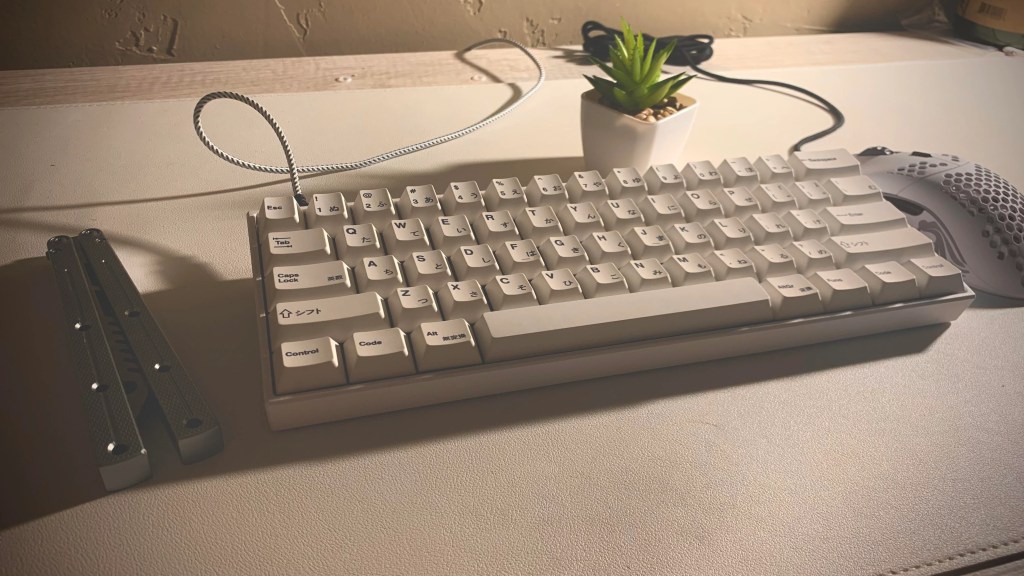
Technology has been continuing to evolve ever since the first time it was created and so are its branches. One of those is the device itself, the computer itself. We could not deny that from the look itself computers before were complex to use and are quite confusing especially if you are new to it. This is how shortcut keys came to be. Our life is evolving, through technology we make our life more convenient. To make the PC more helpful to everyone, the developers make shortcut keys to the PC through the keyboard. The early days of computers, when doing Docs or File was very tiring, the developers thought of something to improve so that the efforts would be lessened and more time would be saved. Its main purpose is to perform an action with a shortcut so that we will not be confused in finding the right button to press for our wanted action.
keyboard
ctrl + A | See All Document
-Pressing CTRL+A a second time selects the entire worksheet. Meaning If the worksheet contains data, and the active cell is above or to the right of the data, pressing CTRL+A selects the current region. From the word Select all. We may use this key when we want to select all inside the document.
ctrl + B | Bold
-Works for new text you type after using it, or you can highlight existing text and then bold it via the shortcut. Meaning this will highlight the text that you selected. In short it creates the appearance of darker text by applying a thicker stroke weight to the letters. We might use this when we want to highlight something, just to remember it or be a clue.
-Helpful when creating remarks including paragraphs.
ctrl + C | Copy Text
-One of the most essential shortcut keys because it copies your selected text to transfer to another source. We will need this when we want to copy a certain text or something like images. The difference of copy text and select all is that the it will only select all but the copy text will copy you’re selected items.
ctrl + D | Font
-It changes the formatting of characters or duplicate the data from the cell above you have selected.
-You can highlight multiple cells to fill them all. We can use this when we need it base from how it works.
ctrl + E | Align Center
-changes the alignment of a line or selected text so that it is centered on the page.
-From the word Align Center meaning it Aligns the line or selected text to the center of the screen.
-When we want to make the items instantly in the center, we should use this key.
ctrl + F | Open find Box
-Also known as Find.
– If you’re in a document or in a web browser, pressing the Ctrl key + the F key will bring up a search box in the top right corner of the screen to find the words that you’re looking for.
-We can use this when we want to search an item in the document, and pressing this shortcut key will make their problem be solved.
ctrl + H | Replace
-It opens the find and replace tool that lets you search for a character, word, or phrase and replace it with something else.
-From the word Replace, to replace characters, words, or phrases that you’ve selected into something else. -The difference between Ctrl plus F is that Ctrl plus H will find then replace, and the Ctrl plus F will only find the words or items
ctrl + O | Open Document
-From the word Open File or Document, this means to quickly open a file and display a list of your recent files.
-When we want to lessen our efforts in opening a file, we should use this shortcut key.
ctrl + S | Save Document
-From the word itself, this means to save a particular document that you want to store or keep.
-We will use this shortcut key, when we want to save the document in our respected devices.
ctrl + V | Paste
-It refers to paste the texts, images, etc. That we copied through the shortcut key of Copy.
–Only works if you already copied something using the Ctrl + C.
-We often use this when we want to attach or paste the copied items.
ctrl + X | Cut
-From the word itself, to cut the selected items, texts, or images.
-We will use this when we want to Cut something in our work.
ctrl + Y | Redo
-From the word Redo, means to redo, to reverse more than one action that has been undone.
-It can only be used after Undo command.
-We should use this shortcut key, when we regretted the undone key that we applied.
ctrl + Z | Undo
-Speaking of Undo, from the word itself, meaning to undo an action.
-We will use this when we regretted our decisions in the document or file, that we want it to be Undo or Undone.